First: Let's set up email on your phone
Open

Settings.
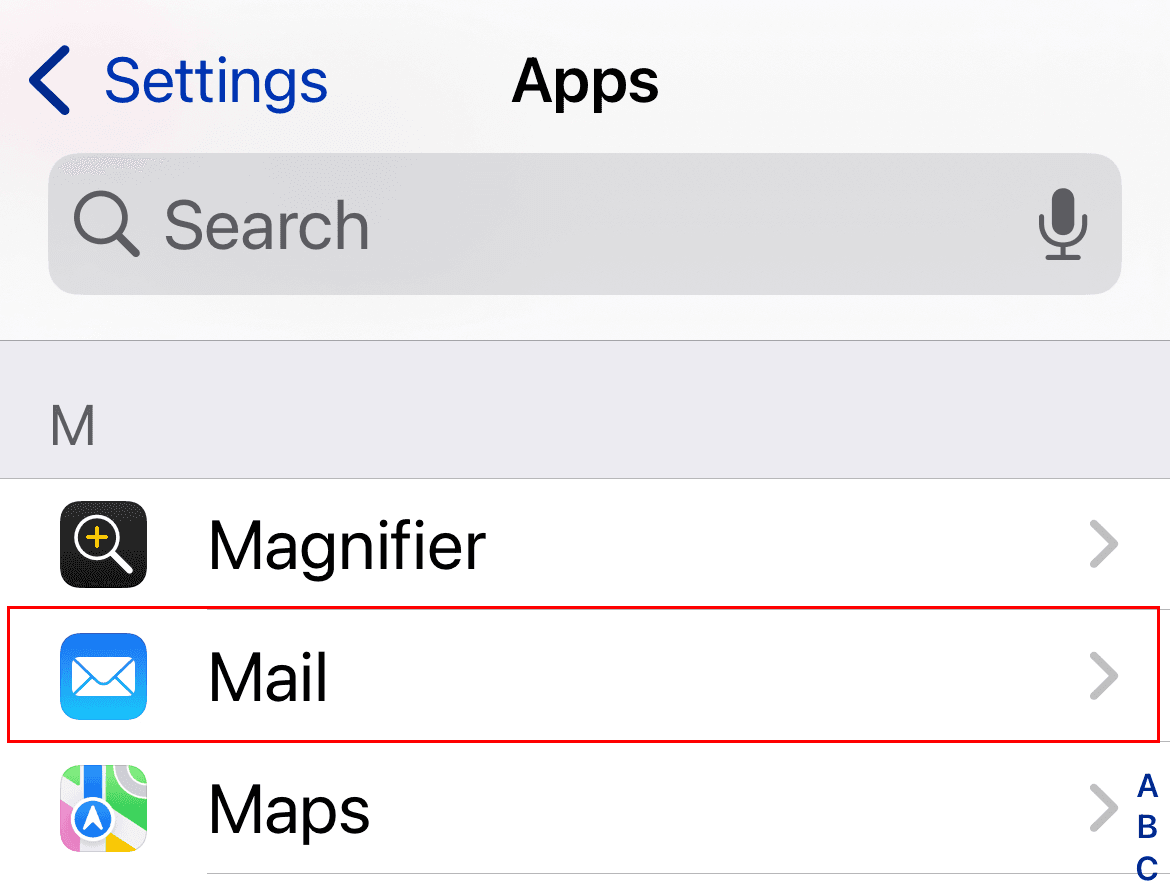
Tap Apps, and then Mail.
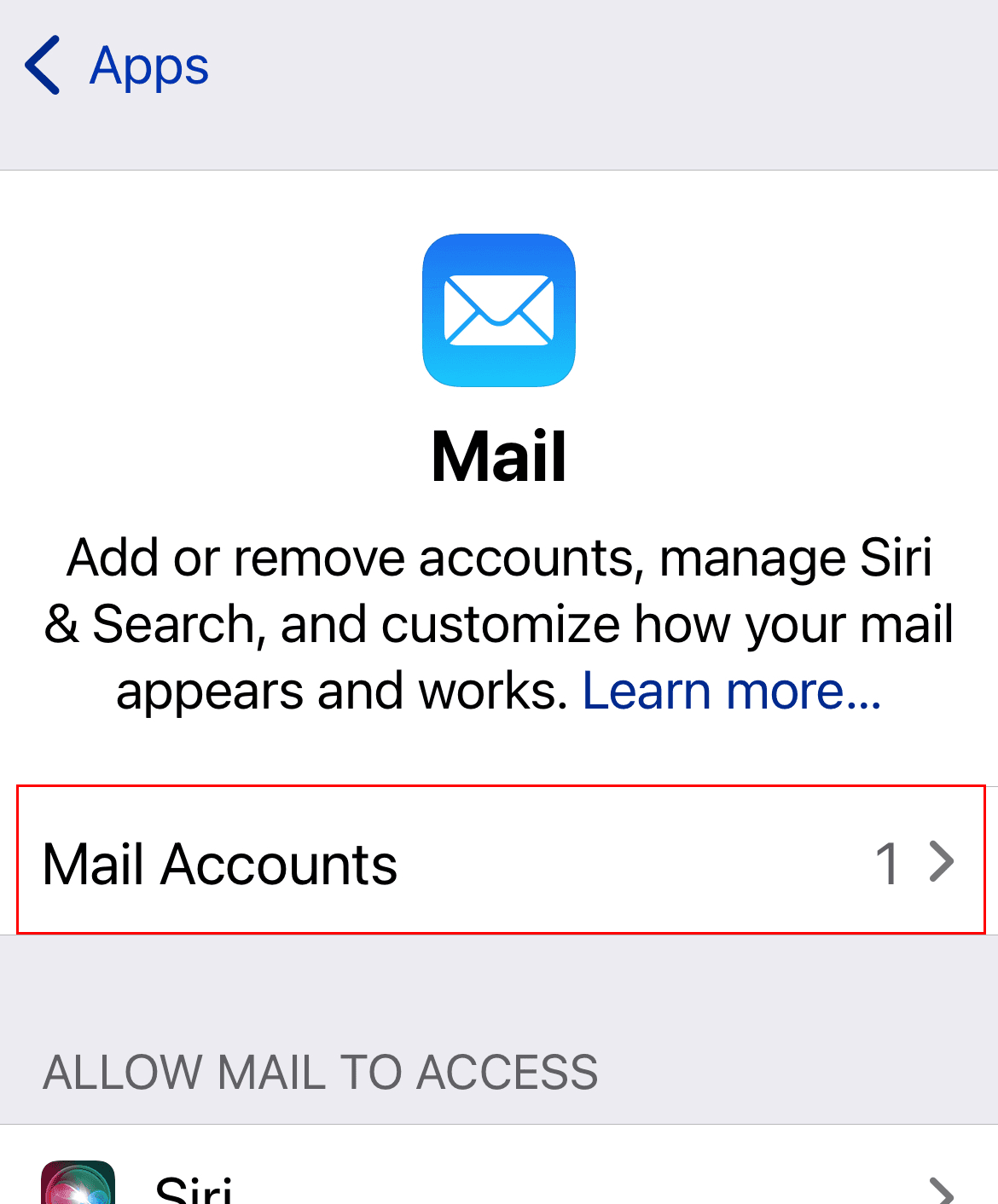
Tap Mail Accounts.
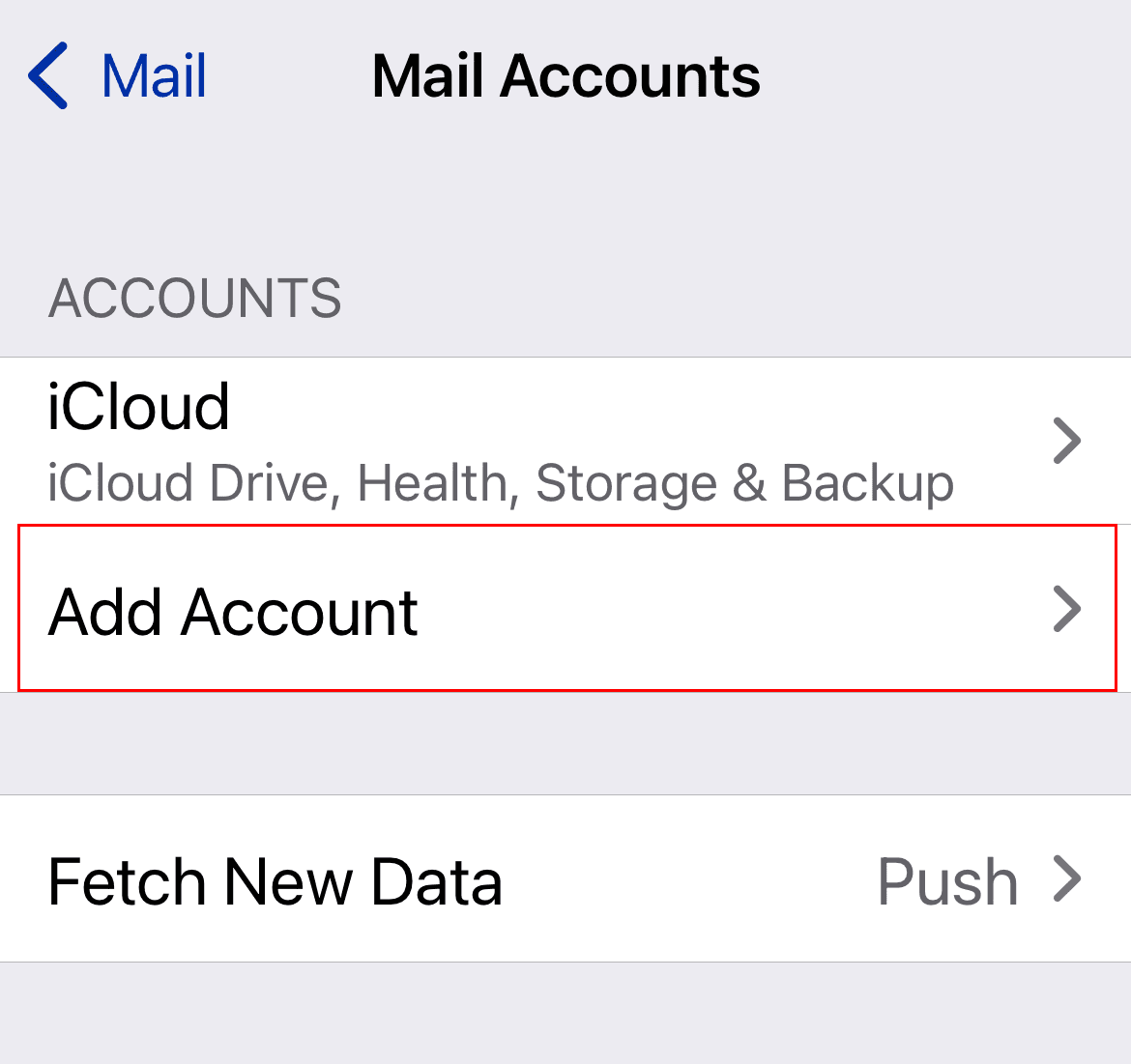
Tap Add Account.
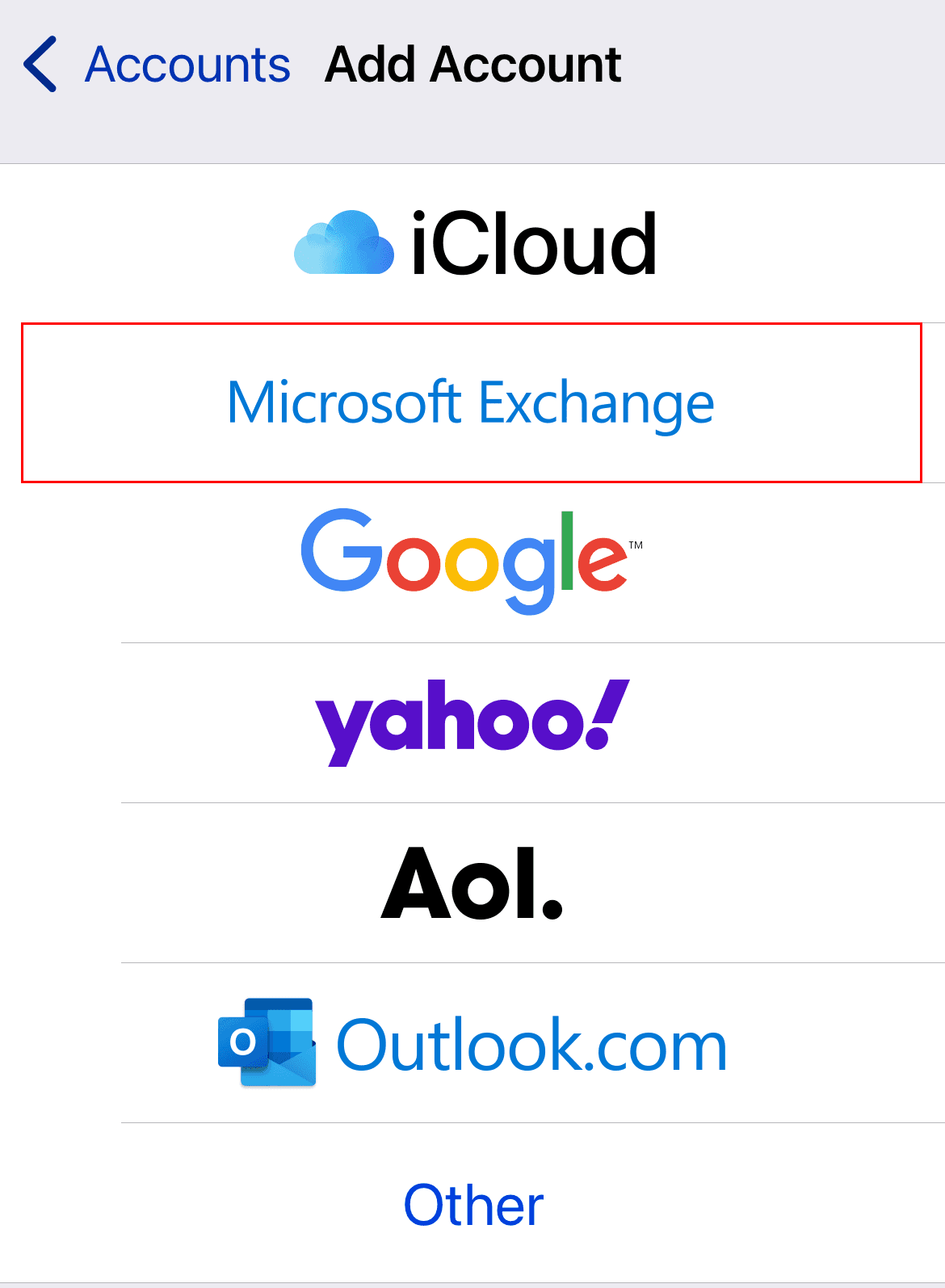
Tap Microsoft Exchange.
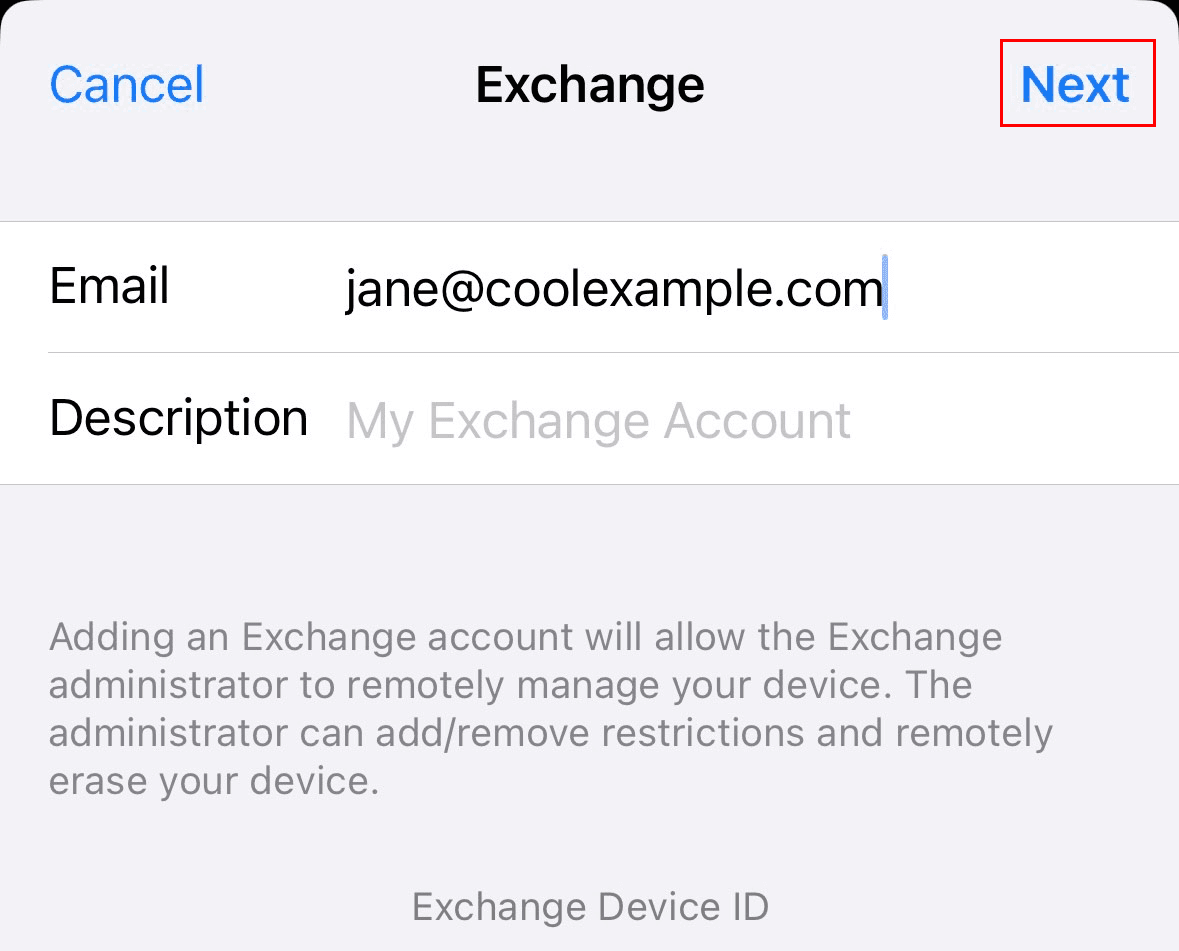
Enter your Microsoft 365 email address, and then select Next.
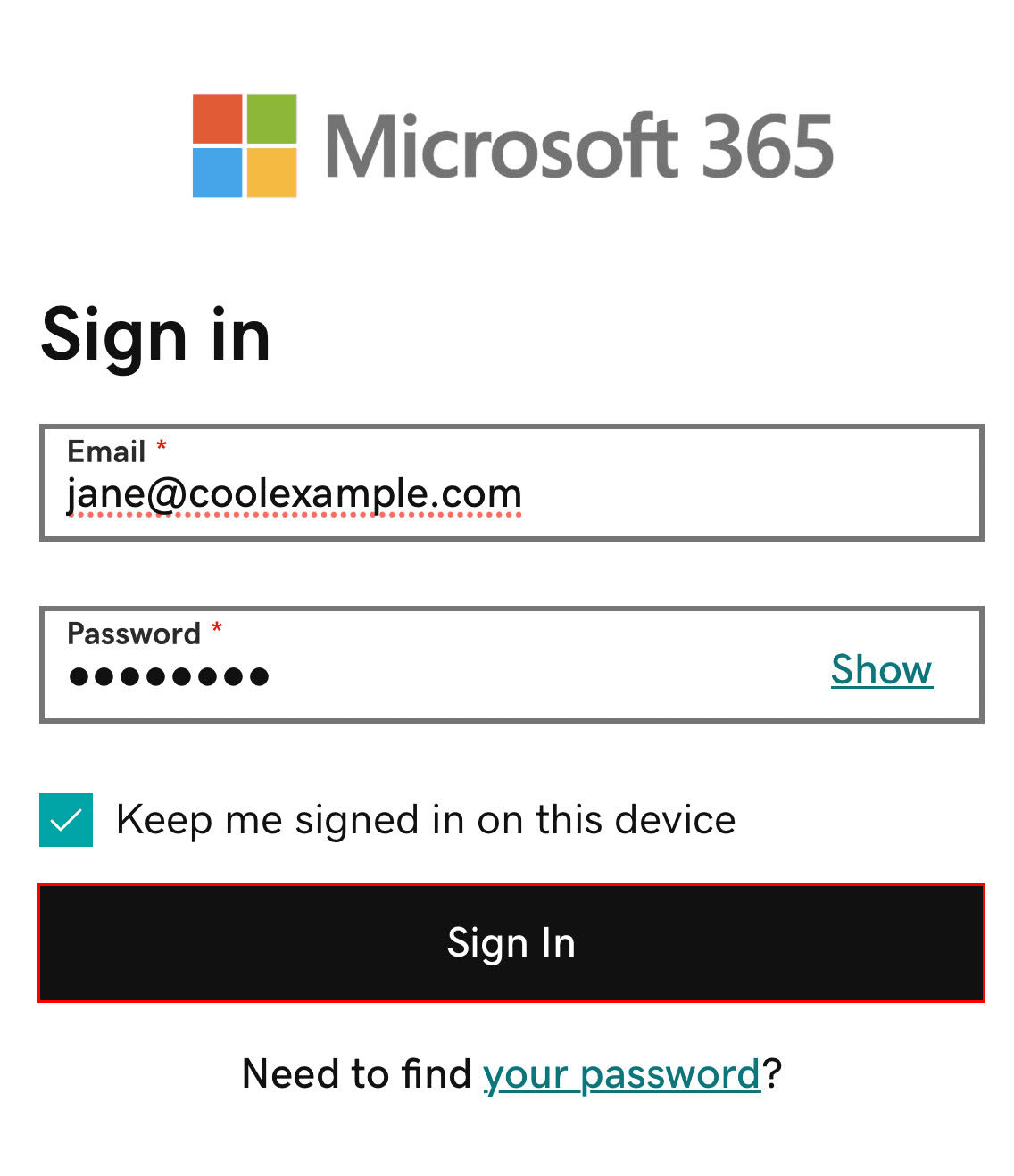
To confirm you want to use your account, tap Sign In. You’ll see a message saying that Settings wants to use microsoftonline.com to sign in.
Tap Continue. The GoDaddy sign-in page will open.
If you see a prompt that says your email is used with more than one account with Microsoft, select Work or school account (not Personal account).
Enter your email password, and then tap Sign In. If the Sign In button is grayed out, in the upper-right corner, tap the

refresh icon to reload the page.
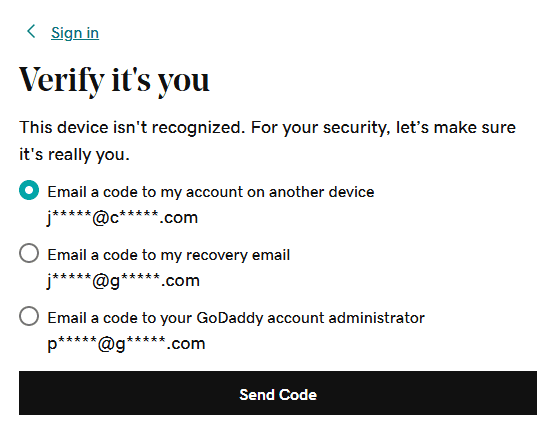
If you're signing in from a new device or location, you'll see a prompt to Verify it's you and confirm your identity through a one-time code.
If you're asked to trust your domain, tap Continue.
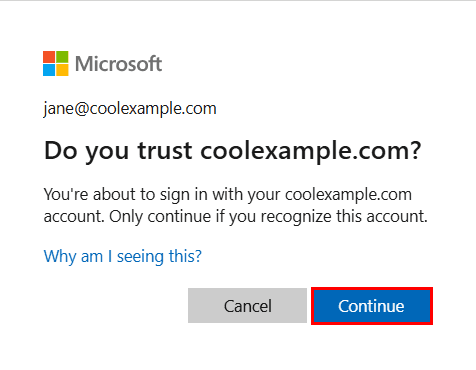
If you see a message that says, "This browser is a bit unusual," you might need to turn off iCloud Private Relay. Find out how to turn off Private Relay from Apple.
If it's your first time signing in and multi-factor authentication (MFA) is enabled, you'll see a prompt to set up your authentication method. (If you have trouble following the on-screen instructions, trying setting up MFA using these steps instead.)
If you already have MFA set up, verify your identity using your authentication method.
You might get a request for permission to access your account. Tap Accept.
Tap Save. Your Microsoft 365 account will be added to Apple Mail.